Blog
How to Find and Share Your Google Review Link (+ Free QR Sign)
Your Google review link takes customers straight to the review box. Here's how to find it in 30 seconds, where to share it, word-for-word message templates, and how to turn it into a printable QR sign.
All posts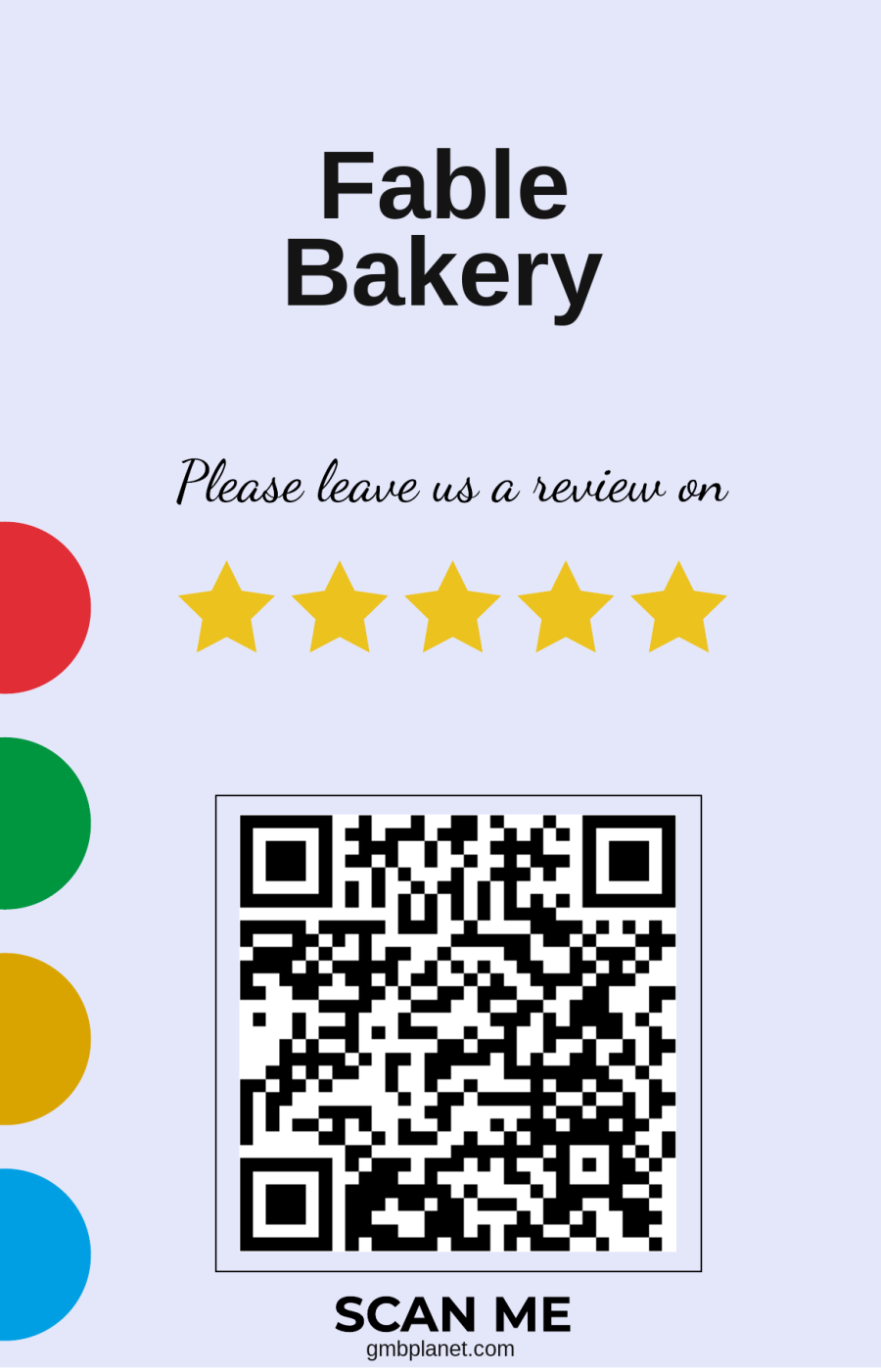

GMB Planet
Notes
Most happy customers would leave you a review. They just won't go looking for the button. Ask them to "find us on Google and leave a review" and you lose half of them at "find us".
Your Google review link fixes that. It opens the review box for your business directly, stars ready to tap. Here's how to find it, where to share it, what to say, and how to put it on a sign at your counter.
Quick answer: Open your Google Business Profile, select Read reviews, then Get more reviews, and use the Share or Copy option. That gives you a short link (and a QR code) that opens your review form. Send it by text or email right after a good visit, and print the QR code for your counter.
How to find your Google review link
These are the steps in Google's help article on review links and QR codes:
Sign in to the Google account that manages your Business Profile and open your profile (search your business name on Google, or go to business.google.com).
Select Read reviews.
Select Get more reviews.
Use Share to send the link straight to an app, or Copy to paste it anywhere. You'll also see a QR code you can download.
On some accounts the button on your profile's home panel says Ask for reviews or Share review form instead. It's the same link.
The mistake to avoid: the "Share" button on Google Maps
If you open your business in Google Maps and tap Share, you get a link to your profile, not the review form. Customers then have to scroll, find the reviews tab and tap "Write a review". Use the review link from your Business Profile instead. It goes straight to the stars.
Can't see the option?
You need to be an owner or manager of the profile. If you're not, ask the owner to add you.
The profile must be verified.
Check you're signed in with the right Google account. It's the most common reason the menu looks different.
Where to share your review link
Timing beats volume. Ask when the customer is happiest, usually right after the job is done or the meal is finished.
Text message: Trades, salons, clinics, anyone with phone numbers · Send within an hour of the visit
Email: Online bookings, professional services · In the thank-you or invoice email
QR code at the counter: Shops, cafés, restaurants · By the register, on tables, on the door
Receipts and bags: Retail · Print the QR code on receipts or a sticker on bags
Business cards and leave-behinds: Home services · Hand over with the invoice
Email signature: Every business · "Enjoyed working with us? Review us on Google"
Website: Every business · A "Review us" button in the footer or thank-you page
Message templates you can copy
Keep it short, personal and easy. One ask, one link. Swap in your details.
Text, after a service visit
Hi Maria, thanks for having us out today. If you're happy with the new water heater, a quick Google review would really help our small team: [link] – Dave, Bright Plumbing
Text, after a salon appointment
Thanks for coming in today, Jess! Loved how your color turned out. If you have 30 seconds, we'd be grateful for a Google review: [link]
Email, after a project
Subject: Thank you, and a small favor
Hi Tom,
Thanks again for choosing us for your kitchen. It was a pleasure working on it.
If you're happy with the result, would you mind leaving a short Google review? It helps other homeowners find us and takes about a minute: [link]
Thanks, Anna
In person, at the register
"If you enjoyed today, we'd really appreciate a Google review. The QR code's right here, and it takes 30 seconds."
Follow-up (only once, a few days later)
Hi Maria, just a gentle nudge in case you missed it. A quick review would mean a lot: [link]. No worries if not!
One reminder is fine. Two is nagging.
Turn your review link into a QR sign
A QR code at the counter does the asking for you while you serve the next customer. Make one in about a minute with our free Google review QR code generator:
Paste your review link.
Add your business name.
Download the PNG or print the ready-made sign.
Then test it: scan the printed sign with your own phone and make sure the review box opens. Tips for placement:
Eye level, near where people pay, not taped low on the door.
One clear line of text: "Enjoyed your visit? Scan to review us on Google."
Big enough to scan from arm's length. Roughly 2 inches (5 cm) square minimum.
Multiple spots for restaurants: tables, the register and the menu.
What Google allows (and what gets reviews removed)
Google wants reviews to be honest and unpaid. These are the rules to stick to:
No incentives. Don't offer discounts, freebies or prize draws in exchange for reviews. Google prohibits incentives for reviews, and reviews obtained that way can be removed.
No review gating. Don't ask only the customers you think are happy, or send unhappy customers somewhere else first. Ask everyone the same way.
No writing reviews for customers, and no reviews from staff or family about your own business.
Asking is fine. Sharing your link, displaying a QR code and sending a friendly reminder are all normal, allowed practice.
What to do when the reviews come in
Getting reviews is half the job. Replying is the other half. Future customers read your replies, and a thoughtful reply can even turn a three-star reviewer into a regular. Use our guide on how to respond to Google reviews (20 copy-paste replies), or the free review reply generator for a quick first draft.
GMB Planet puts asking and replying into one weekly routine: print your storefront QR review sign, then reply to every new review from one list, for one shop or many. Plans start at $15 a month, with a 7-day free trial.
Your next step
Grab your review link now: Read reviews → Get more reviews → Copy. Save it as a text shortcut on your phone so you can send it in two taps, then make a free QR sign for your counter. Ask your next five happy customers, and watch what happens.
Frequently Asked Questions
Where do I find my Google review link?
In your Google Business Profile, select Read reviews, then Get more reviews, then Share or Copy. Some accounts show an Ask for reviews button on the profile panel instead. You need to be an owner or manager of a verified profile.
Is the Google Maps share link the same as a review link?
No. The Maps share link opens your business profile, so customers have to find the review button themselves. The review link from your Business Profile opens the review form directly.
Does my Google review link expire?
Your review link stays tied to your business, so you can print it on signs and cards. If you ever see an error, generate it again from your Business Profile and update your QR code.
Can I offer a discount for a Google review?
No. Google prohibits offering incentives for reviews, and incentivized reviews can be removed. Ask every customer the same way and let them decide.
How many times should I ask a customer for a review?
Once, with at most one gentle reminder a few days later. Ask soon after a good experience, when it's fresh.